Running Server in Background
When you start your server, the text you write then goes into the server process: you can’t use your Linux normally anymore.
If you run your server in a VPS, closing the SSH window will not stop your server, but when you will reconnect to the VPS, the server console will be gone.
A solution is to run the server in the background, to achieve this, we will use tmux.
You will be able to detach from the server console, keeping it running in the background. You will also be able to reattach to your server to go back to its console, even after you closed your Linux session.
Installing tmux
tmux can be installed on Debian/Ubuntu (which most of the servers use) using the following command:
sudo apt install tmux
Starting a tmux session
To start a new session, simply enter tmux and you’ll enter the new session.
Note
When you are in a tmux session, you’ll see a green line at the bottom like in the figure below.
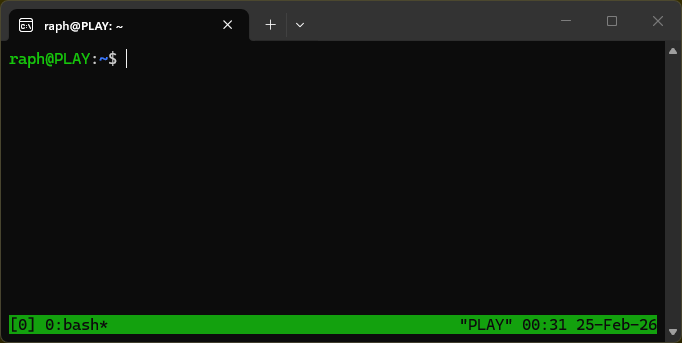
A tmux session with green line at bottom showing some information about the session
Detaching from a tmux session
To detach from a tmux session, do exactly like this:
Press
Ctrl + bRelease all keys
Press
d
Managing tmux sessions
To list existing sessions, type tmux ls.
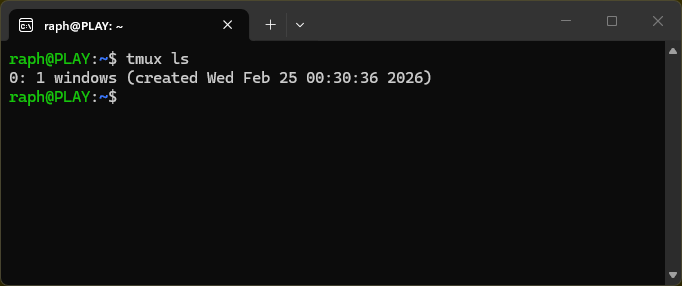
Listing active tmux sessions
As you can see in the figure above, the id of the session we created previously is 0. Type the following command to attach it.
tmux attach -t 0
To kill this session, type:
tmux kill-session -t 0
Now you can create session, run your cod server in it, detach from it and close your Linux session. When you connect next time, the server would still be running in the tmux session.
Automating with a script
Let’s make a script that will do everything. Assuming you already have a script to start your server, this new script will execute your current start script.
For clarity, go to the directory containing your start script, in my case, the path is /home/raph/myserver, and my start script is named start.sh as you can see:
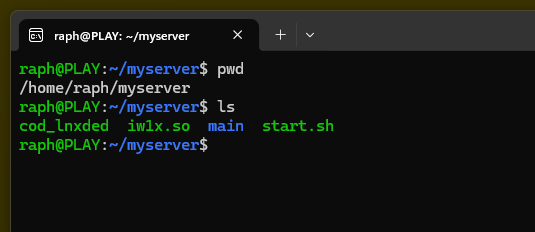
Now create a script called startbackground or whatever you like and paste the following in it.
#!/bin/bash

SVR_DIR="$HOME/myserver"
SESSION_NAME="myserver_session"

tmux new-session -d -s "$SESSION_NAME"
tmux send-keys -t "$SESSION_NAME" "$SVR_DIR/start.sh"
Note
Replace start.sh by your current filename if needed.
Replace “$HOME/myserver” by your own path if needed.
Now make the file executable and run it:
chmod +x startbackground
./startbackground
The server should be running now. You can list tmux sessions to verify.
Note
Caution
When you want to do heavy tests on your server, like try to debug stuff etc, use a normal session instead of tmux, it’s more reliable and avoids confusions.
Use tmux when your server is ready to be played on.
Credits
Run the server in background: Raph’s cod1 tutorials