Managing pk3 files
pk3 files are zip archives but with the pk3 extension. They contain files required for the client, such as images.
Browsing
You can browse them, and modify their content without needing to extract them with an archive manager.
On Windows, 7-Zip is a better choice than “WinRAR” according to Raphael [1].
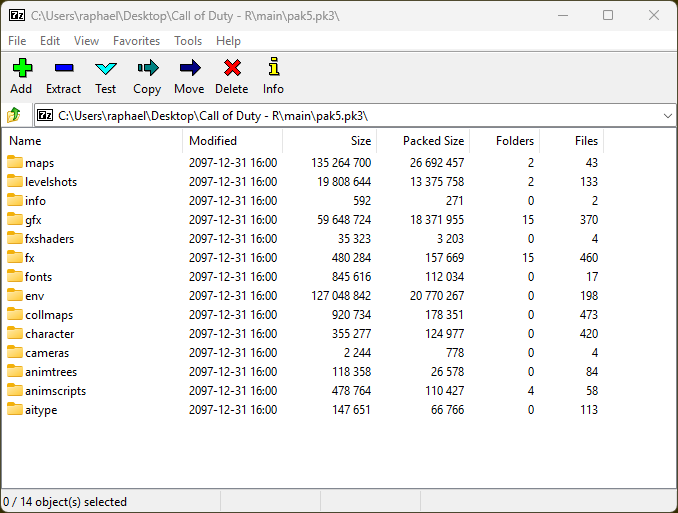
Browsing pak5.pk3 using 7-Zip
Creating
First of all, if you’re using Windows, be sure to make your File Explorer display “File name extensions”, like this:
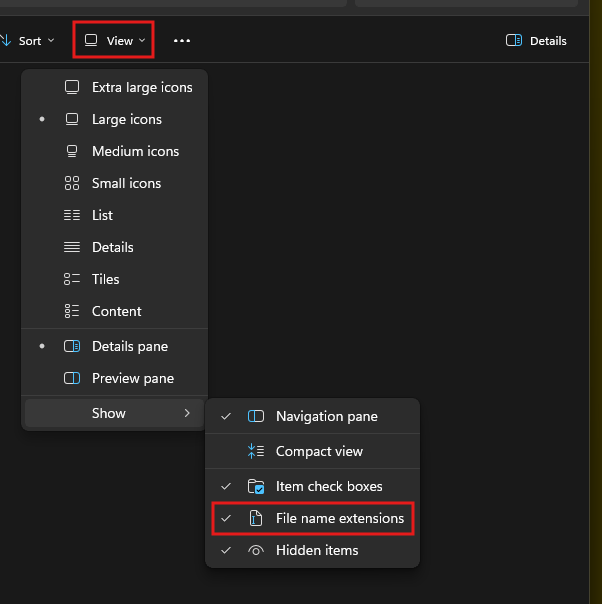
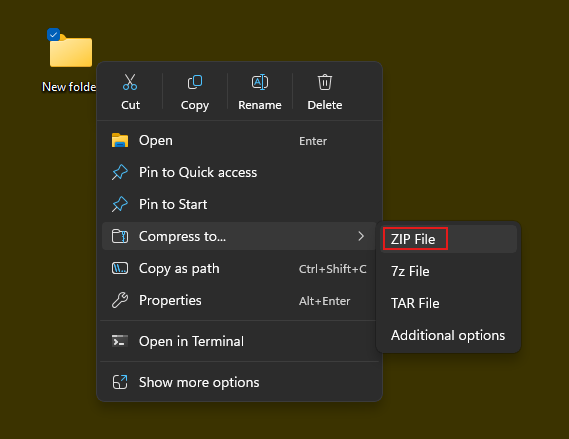
Now, let’s take an empty folder, it will be the content of our pk3.
First, compress it to zip file, like this:
Then, rename it, replacing .zip by .pk3. You’ll get this confirmation prompt on Windows:
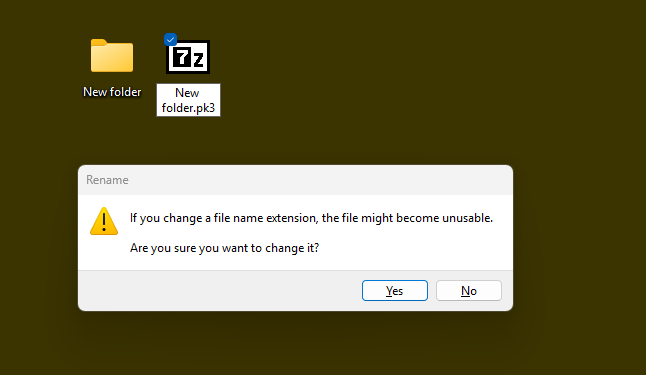
Simply click ‘Yes’.
Adding Files
To add files to your pk3, open the pk3 with your archive manager, then just drag your file (or folder) into the window.
Updating Files
To update/replace files in your pk3, do just like explained above for adding files: drag it at the same location as the old one.
Prioritization By Client
The client loads pk3 files by reverse alphabetical order: qak.pk3 has priority over pak.pk3, so just rename your pk3 accordingly.
Credits
Original Tutorial: Raph’s cod1 tutorials